CompuCell3D
|
Size: 4077
Comment:
|
Size: 4170
Comment:
|
| Deletions are marked like this. | Additions are marked like this. |
| Line 28: | Line 28: |
| 1. Use white for medium (255,255,255) 1. Use Black for cell boundaries (0,0,0) 1. Simple colors are a bit easier (though you can use any color), so start with red (255,0,0), green (0,255,0), blue (0,0,255),... 1. All cells of the same type should have the same color. 1. The image should be about the same pixel dimension that it will be used in CC3D. This code can not interpolate or extrapolate to fit the image into a CC3D window of different dimensions. It could put a smaller image into a larger CC3D window though. 1. Below is an image created in !PowerPoint with cells of various shapes and colors: |
1. Use white for medium (255,255,255) 1. Use Black for cell boundaries (0,0,0) 1. Simple colors are a bit easier (though you can use any color), so start with red (255,0,0), green (0,255,0), blue (0,0,255),... 1. All cells of the same type should have the same color. 1. The image should be about the same pixel dimension that it will be used in CC3D. This code can not interpolate or extrapolate to fit the image into a CC3D window of different dimensions. It could put a smaller image into a larger CC3D window though. 1. Below is an image created in !PowerPoint with cells of various shapes and colors: |
| Line 45: | Line 45: |
| 1. In the project folder that you just unzipped, place the image you want to use in the "Simulation" folder. | 1. The image you want to use can e anywhere on your computer but it is convenient to place it in the "Simulation" folder. |
| Line 53: | Line 53: |
| 4. Run the CC3D project. The CC3D project: | 4. Run the CC3D project, which: |
| Line 56: | Line 56: |
| 3. Outputs a .piff file based on your image. The piff file is written in the same directory that had the original image in it. | 3. Outputs a .piff file based on your image. 1. The piff file is written in the same directory that had the original image in it. 1. If your input image was "my_image.bmp", the output file will be "my_image.bmp.piff" |
Importing an image into CC3D and creating Cells
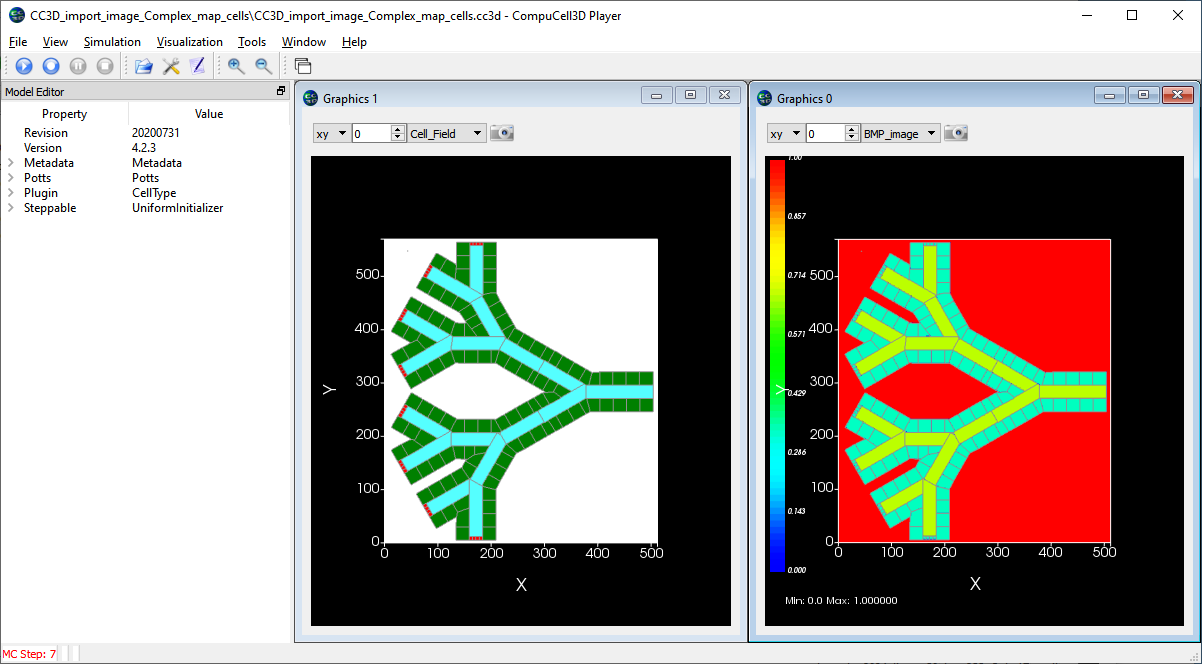
If you have created a cell layout suing a drawing tool (like PowerPoint, or Paint or ....) and you would like to import that image into CC3D and create a cell field based on the image, here is how you do it.
The goal of this CC3D project is to;
- read a bmp (or jpg, png, ...) image showing a cell layout (probably create in a simple drawing program)
- convert the image into a set of cells in CC3D
- save the resulting CC3D layout as a piff file
Need to install PIL
By default, the Python installed with CC3D does not include the Python Image Library (PIL) so you will have to install it. To do that:
Open a command window and browse to the Scripts folder in the Python directory installed with CC3D. On a windows machine it will be in the directory:
- C:\CompuCell3D-py3-64bit\python36\Scripts\
Run pip, the standard python installer, to install the Image library
- pip.exe install Image
- Hopefully every thing goes OK and you now have PIL installed, which includes the Image package.
- The PIL image library can work with jpg, jpeg, png, bmp and a few other image formats. It does not work with gif format images.
Using CC3D to convert your image into a cell field and save as a piff file
Here is how you do it, it has a couple steps, but isn't too difficult. (This is written for CompuCell3D 4.x and Python 3.x)
- Create an image of your cell field using the drawing tool of you choice.
- The drawing should NOT be anti-aliased (aliasing fuzzy's up the borders).
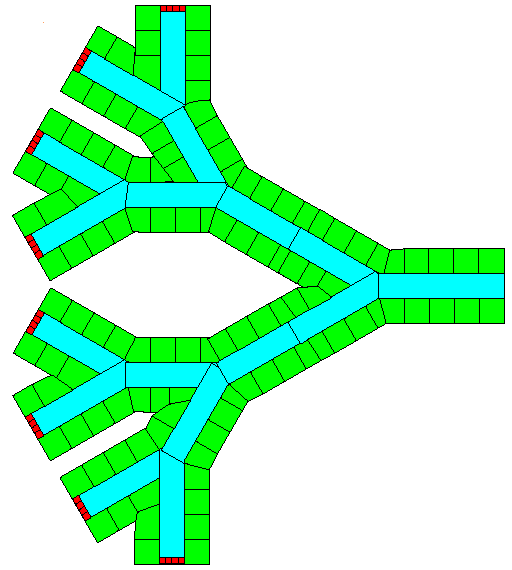
- Use white for medium (255,255,255)
- Use Black for cell boundaries (0,0,0)
- Simple colors are a bit easier (though you can use any color), so start with red (255,0,0), green (0,255,0), blue (0,0,255),...
- All cells of the same type should have the same color.
- The image should be about the same pixel dimension that it will be used in CC3D. This code can not interpolate or extrapolate to fit the image into a CC3D window of different dimensions. It could put a smaller image into a larger CC3D window though.
Below is an image created in PowerPoint with cells of various shapes and colors:
- Save the image in a bit mapped format that the PIL-Image library supports; jpg, png or bmp.
- If you have a different image format you will need to convert it to one of the formats listed above.
- Finally, you need the CC3D code to read the image and convert it into a set of cells in CC3D.
Download and unzip this zip file
- It is best if you know how big the image is and setup CC3D so that the simulation window is at least that big. Many image viewing programs will tell you the size of the image in pixels.
- The image you want to use can e anywhere on your computer but it is convenient to place it in the "Simulation" folder.
- Edit the file in the project called "CC3D_import_image_Complex_map_cells_Parameters.py" which defines the color mapping you want.
- define the path and filename to your image
- Define the size of the CC3D layout (which normally matches the dimensions of your image)
- Define the color ranges that map to each cell type
- Edit the file in the main project file (CC3D_import_image_Complex_map_cells.py)
Update the list of cell types and names in the "CellType" plugin block. You can replace the lines that are already there using them as a template. It is important the "Medium" is defined as type ID 0 (zero) and that all of the cell types are "Freeze".
4. Run the CC3D project, which:
- Reads the image file
- Creates a cell field based on the image and the color mapping
- Outputs a .piff file based on your image.
- The piff file is written in the same directory that had the original image in it.
- If your input image was "my_image.bmp", the output file will be "my_image.bmp.piff"